
How to close your PayPal account
This tutorial will show you how to close your PayPal account
1) Click Edit Profile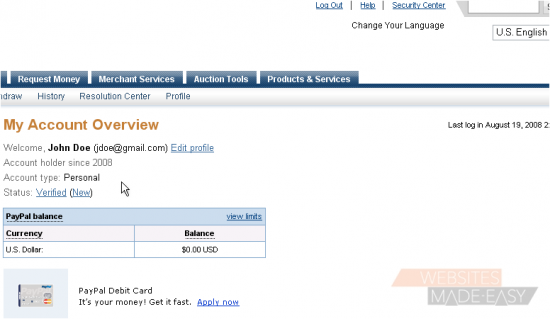
2) Then click Close Account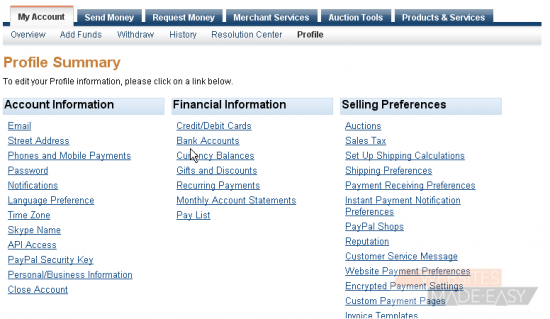
Once you close your account, you cannot get it back, and your account history and reputation number will be lost. Also, PayPal will charge you a $1.50 check processing fee. If your balance is under $1.50, PayPal will not send you a check
3) Click Continue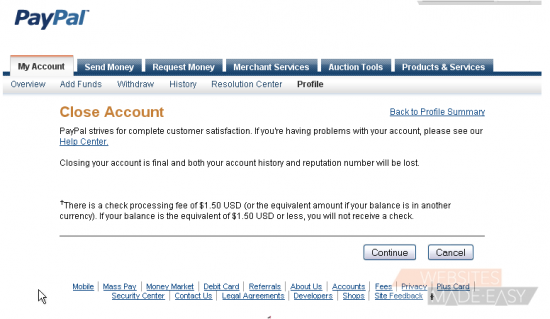
4) You will need to select a reason why you are closing your account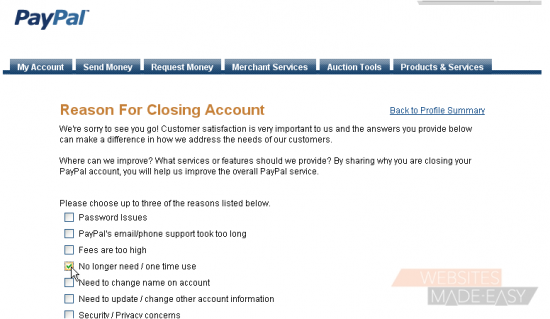
If you do not see any reasons in the list why you are closing your account, you can select Other and type in a reason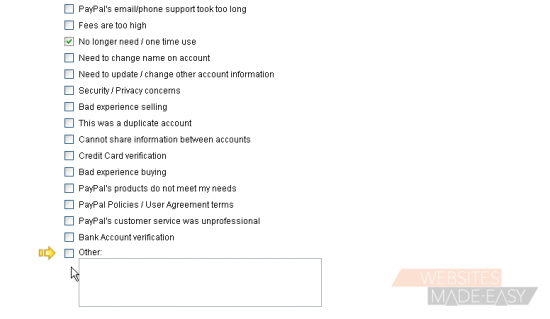
If you have any comments about the PayPal service, you can enter them here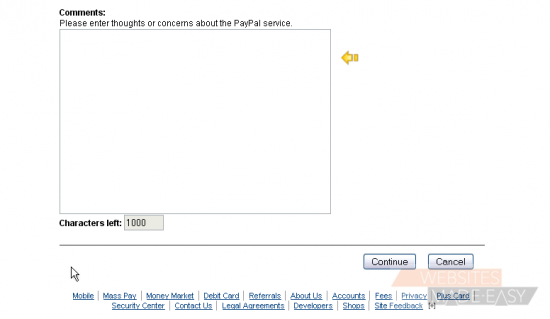
5) Click Continue
If you believe you can resolve any account concerns by phone, you can contact PayPal
6) If you still wish to close your account, click Continue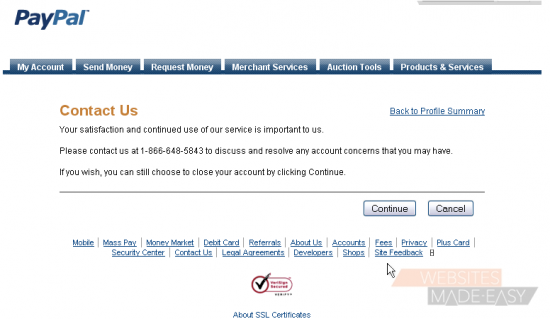
Since the balance in this account is less than $1.50, we will not receive a check for any balance
7) Click Close Account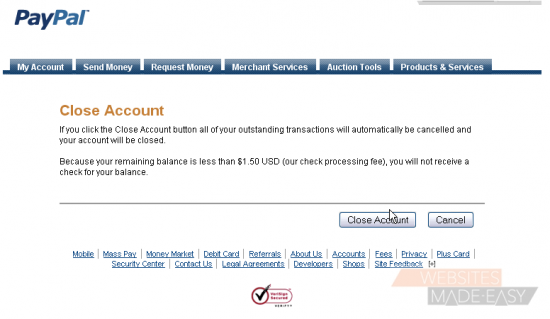
Success!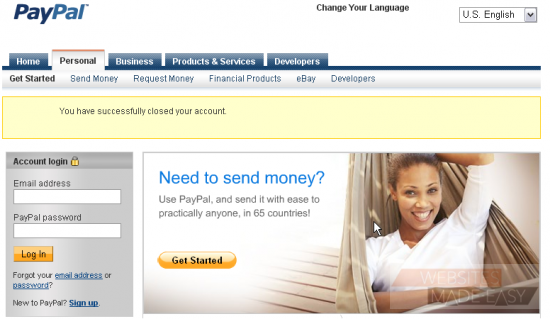
This is the end of the tutorial. You now know how to close your PayPal account