
This demo assumes you've already logged in to cPanel
Now let's learn how to setup a cron job
1) Click the Cron Jobs icon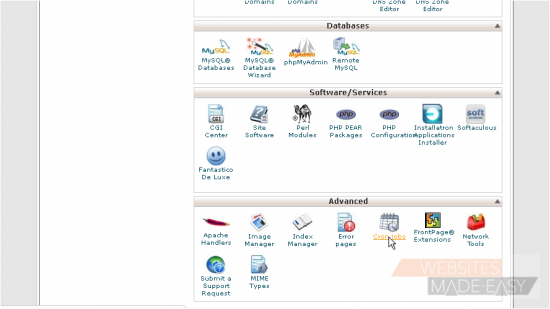
2) Enter the email address where you want the cron job results sent after each time it runs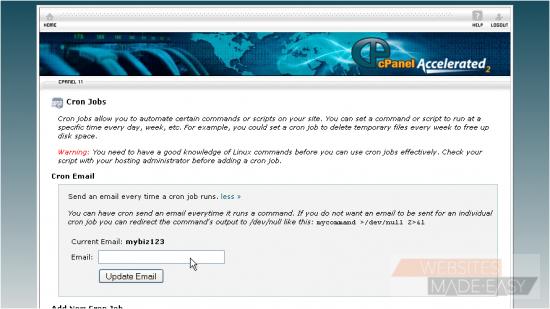
3) Now you have to define exactly when and how often you want the cron job to run. This is made easier by using one of the pre-defined or common settings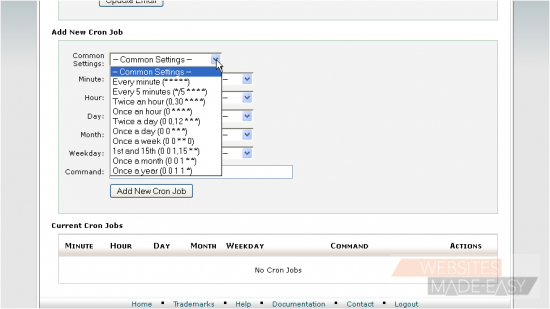
Notice that by choosing a common setting, all fields are filled in automatically. This also helps you understand what each field means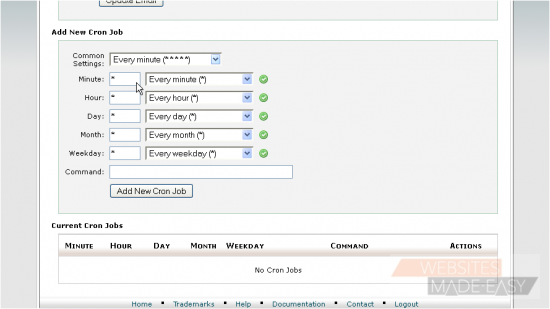
4) Let's choose Once a week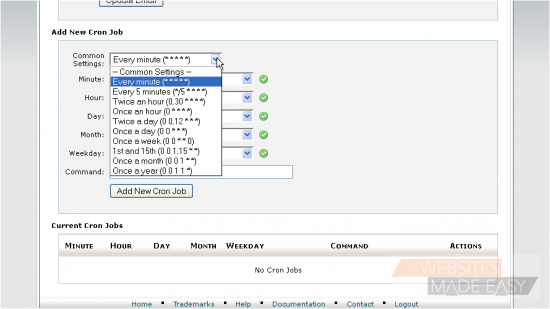
5) Next, enter the command of the script you want to run, including the path (from root)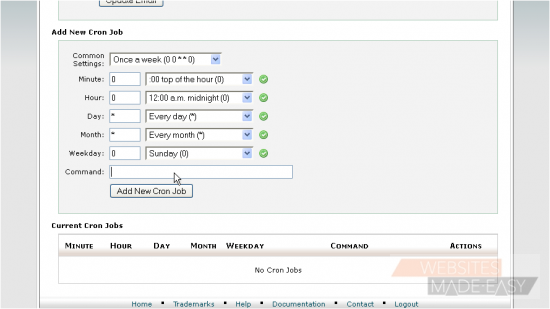
6) When ready, click Add New Cron Job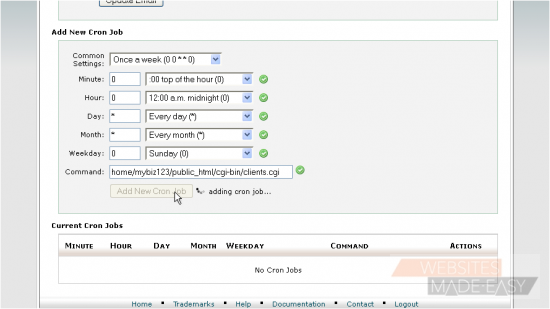
That's it! The cron job has been set as you can see here. You can create additional cron jobs, and edit or delete existing ones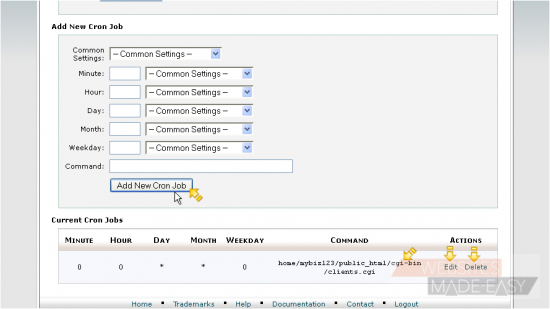
This is the end of the tutorial. You now know how to setup cron jobs in cPanel. Click here to watch the Video Tutorials.