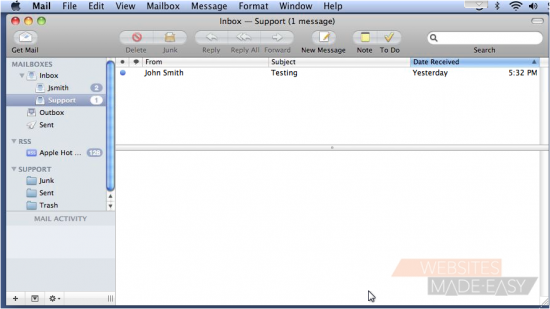
How to setup a mail account using IMAP
This tutorial assumes you have already set up an e-mail account in your control panel.
1) Go to File... then click Add Account.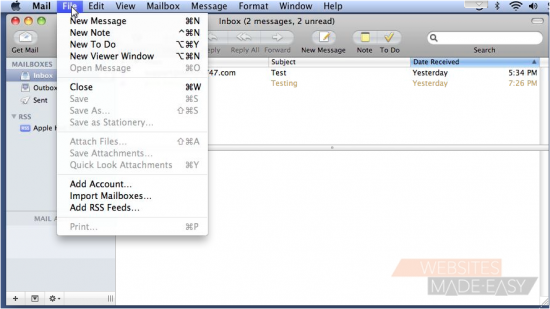
2) Type your name as you want it to appear... enter your full e-mail address... then type the password associated with this account. When ready, click Continue.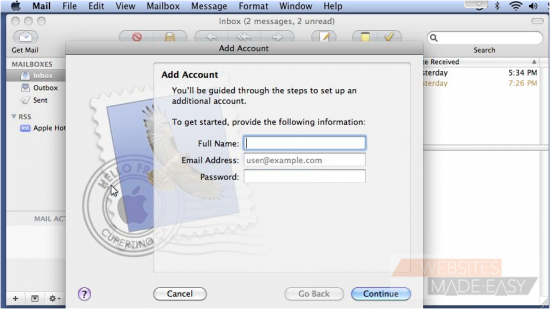
3) Select IMAP for the Account Type.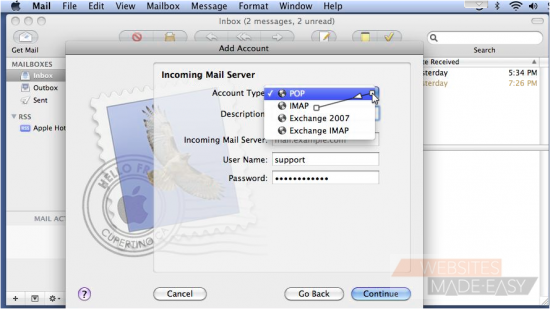
4) Then type a description, and enter the Incoming Mail Server as provided by your host. Note that this can be anything from mail.example.com to just the domain name.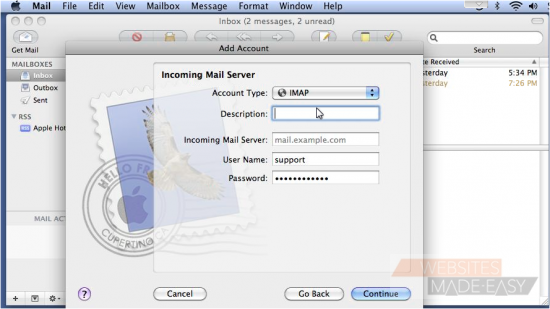
5) Type your username and password, then click Continue.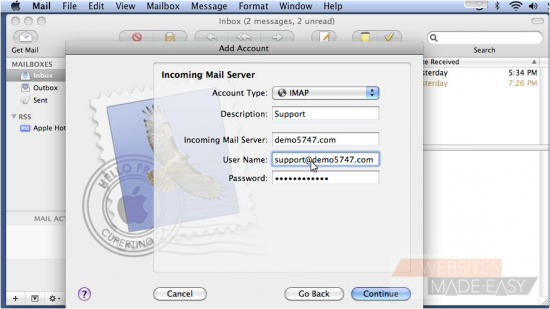
6) In order to send mail from this address, we need to set up the Outgoing Mail Server. Enter a description, then type the Outgoing Mail Server here.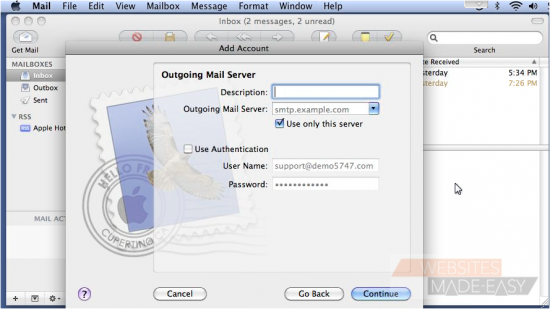
7) If required by your host, check Use Authentication, then click Continue.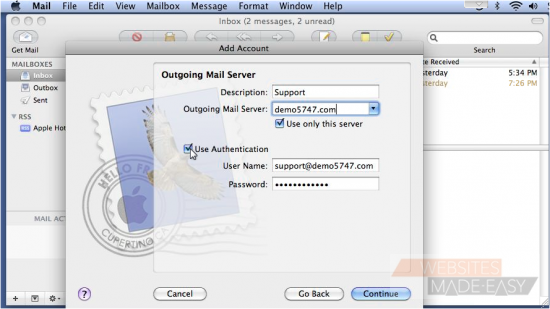
8) Review the information and click Create.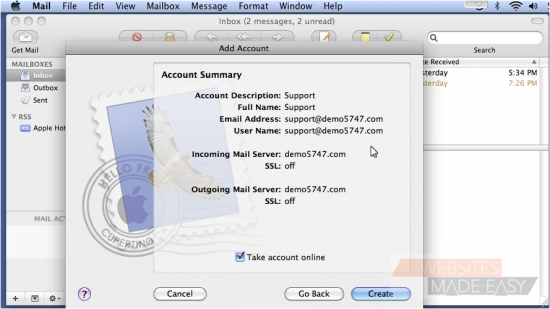
9) That's it! Here is the mailbox we just set up... and all the messages on the server show up here.