
How to change your email password on your iPhone

How to change your email password on your iPhone

This tutorial will show you how to change your email password on your iPhone.

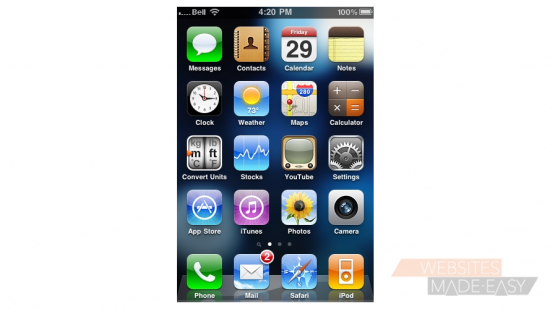
1) First, locate and press the "Settings" icon. It may be on a different screen or in a different location than shown here.
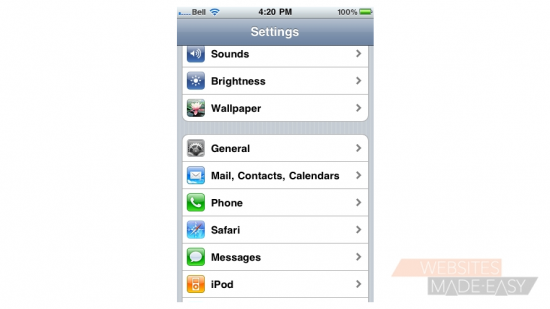
2) Then select "Mail, Contacts, Calendars".
3) Select the email account for which you want to update the password.
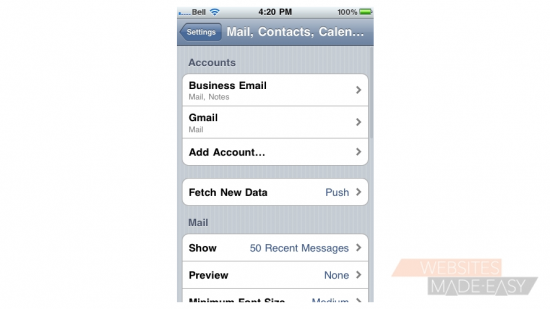
4) Then select the email account here.
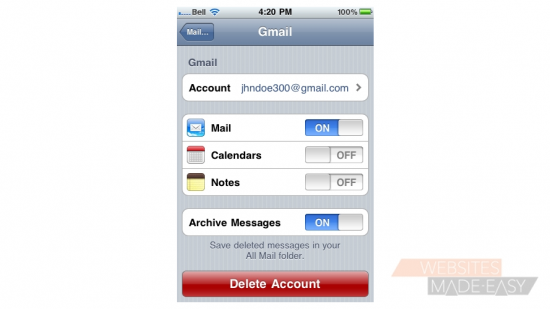
This is where you can update your email password. You should only have to do this if your email password has changed.
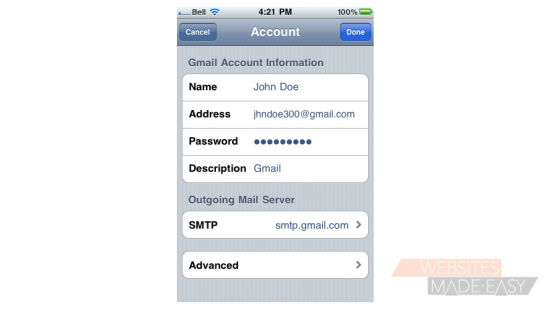
5) Enter your new password here.
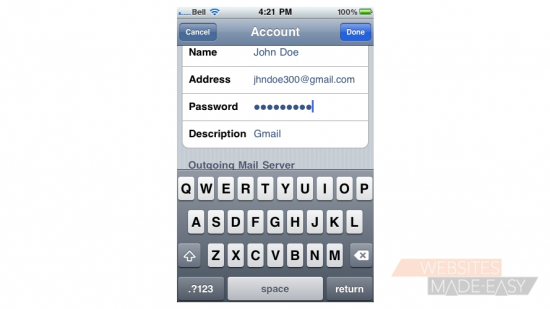
6) When finished, press "Done".
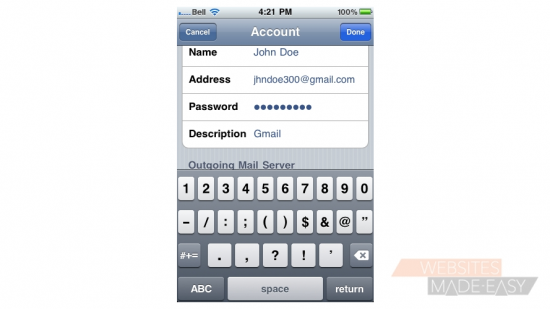
That's it! The email password has been updated in the iPhone. You now know how to change your email password in your iPhone.

  • 0 Utenti hanno trovato utile questa risposta
Hai trovato utile questa risposta?

Articoli Correlati

How to delete an email account on your iPhone

How to delete an email account on your iPhone This tutorial will show you how to delete an email...

Setting up your email signature on your iPhone

Setting up your email signature on your iPhone This tutorial will show you how to setup your...

Configuring your email settings on your iPhone

Configuring your email settings on your iPhone This tutorial will show you how to configure your...

How to setup a Yahoo! email account on your iPhone

How to setup a Yahoo! email account on your iPhone This tutorial will show you how to setup a...

How to setup a Gmail account on your iPhone

How to setup a Gmail account on your iPhone This tutorial will show you how to setup a Gmail...