
How to change your cPanel style

This demo assumes you've already logged in to cPanel

Now let's learn how to change the cPanel style

1) Click the Change Style icon
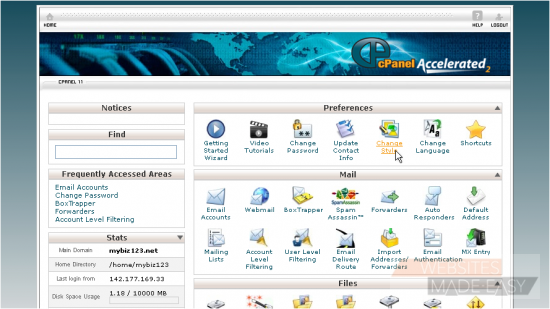
Changing your control panel theme does not change any functionality, only the way it looks

There are several styles available to choose from...
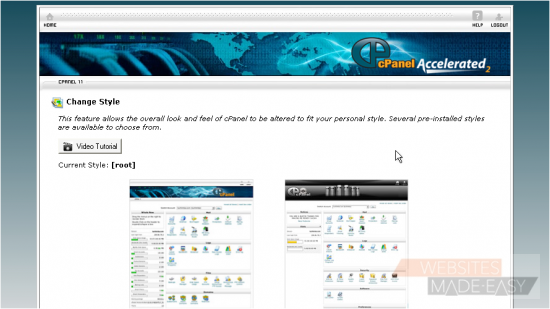
2) To change your style, simply click the Switch Style button
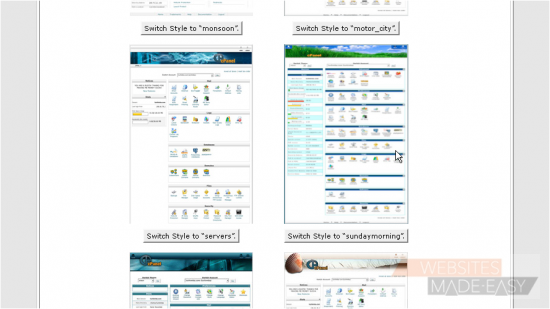
That's it! As you can see, the "look" of our control panel has changed
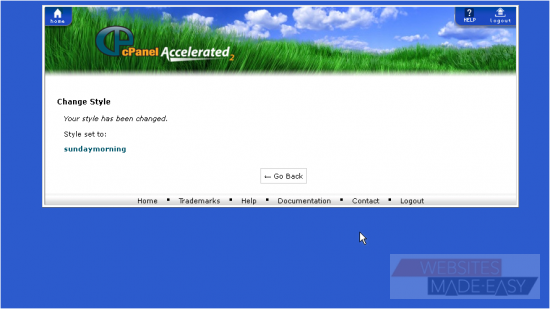
3) To change it back, simply repeat the process

This is the end of the tutorial. You now know how to change the style of your cPanel control panel.  Click here to watch the Video Tutorial.

  • 0 Корисниците го најдоа ова како корисно
Дали Ви помогна овој одговор?

Понудени резултати

How to Login in to cPanel

This demo assumes you've already opened your browser, and entered your cPanel login URL Now...

How to create a POP email account in cPanel

This demo assumes you've already logged in to cPanel Now let's create a new POP email account...

How to set your default address in cPanel

This demo assumes you've already logged in to cPanel Now let's learn how to set our default...

How to setup an auto-responder in cPanel

This demo assumes you've already logged in to cPanel Now let's learn how to setup an email...

How to setup email forwarding in cPanel

This demo assumes you've already logged in to cPanel Now let's learn how to setup email...