
How to change your cPanel password

This demo assumes you've already logged in to cPanel

Now let's learn how to change our cPanel password

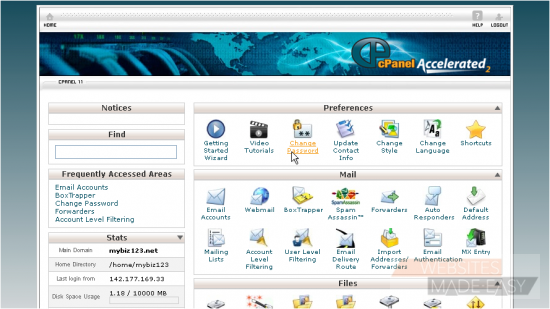
1) Click the Change Password icon
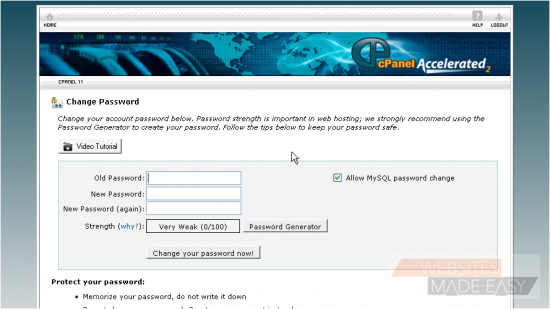
2) First enter your current (or old) password
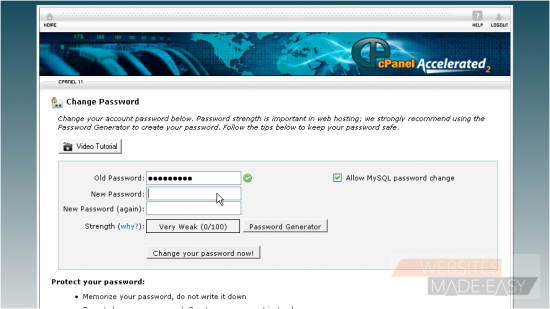
3) Then enter and confirm a new password.
4) Then click Change your Password Now
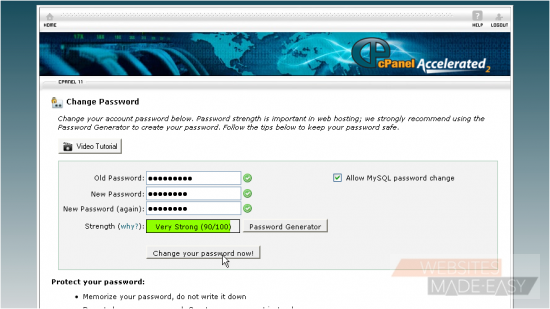
That's it! Your cPanel password has been changed. You'll now need to use this new password to login to cPanel, so be sure to keep it in a safe place.
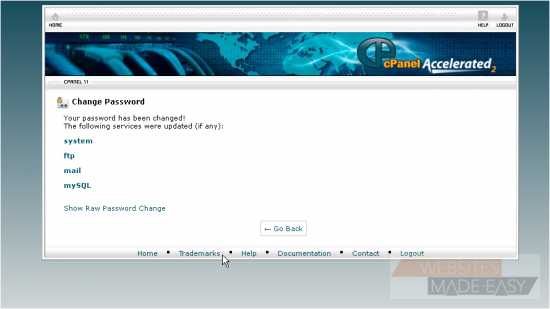
This is the end of the tutorial. You now know how to change your cPanel password.  Click here to watch the Video Tutorial.

  • 0 Bu dökümanı faydalı bulan kullanıcılar:
Bu cevap yeterince yardımcı oldu mu?

İlgili diğer dökümanlar

How to Login in to cPanel

This demo assumes you've already opened your browser, and entered your cPanel login URL Now...

How to create a POP email account in cPanel

This demo assumes you've already logged in to cPanel Now let's create a new POP email account...

How to set your default address in cPanel

This demo assumes you've already logged in to cPanel Now let's learn how to set our default...

How to setup an auto-responder in cPanel

This demo assumes you've already logged in to cPanel Now let's learn how to setup an email...

How to setup email forwarding in cPanel

This demo assumes you've already logged in to cPanel Now let's learn how to setup email...