
How to configure an email account in Outlook Express
This tutorial assumes you've already created your new email account in your web hosting account..... typically through your hosting control panel
Now let's learn how to setup that new email account in Outlook Express, so you'll be able to send/receive emails to/from that new email account from here
1) Start by clicking the Tools link here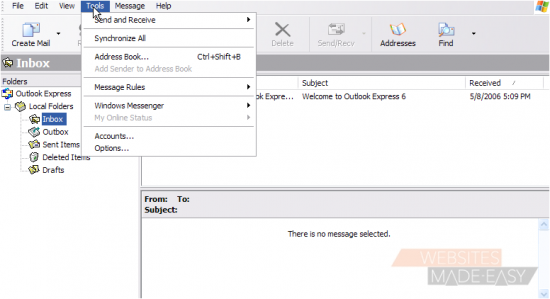
2) Then click Accounts
The Internet Accounts window appears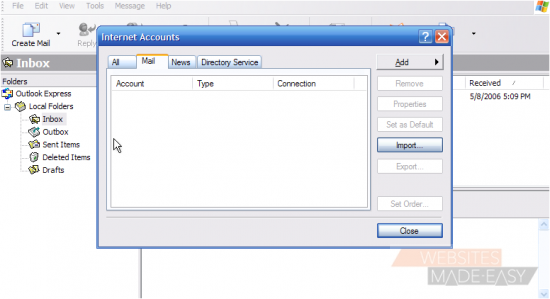
3) Click the Add button
4) Then click Mail...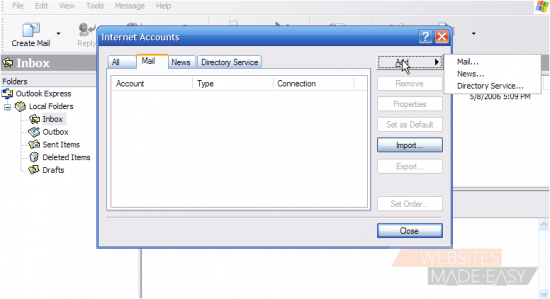
5) Enter the Name as you would like it to appear in the From field of outgoing emails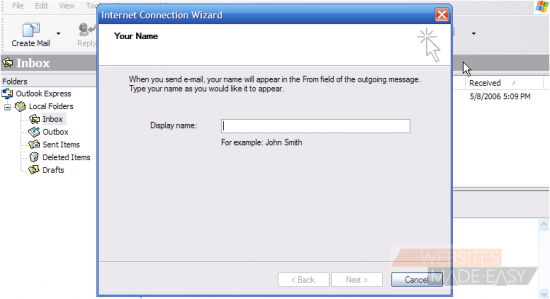
6) Then click Next
7) Now enter your new email address here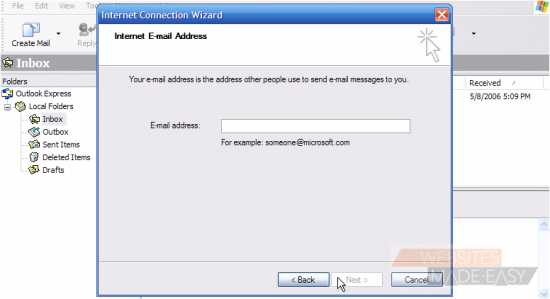
8) Then click Next
Now you have to enter your Incoming (POP3) and Outgoing (SMTP) server names
These server names will have been provided to you in your welcome email, and often times are simply mail.yourdomain.com
9) Choose POP3 for the incoming mail server setting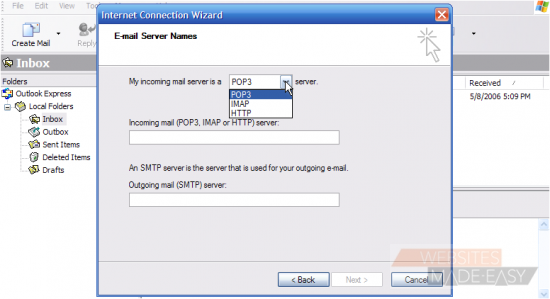
10) Now enter your Incoming (POP3) and Outgoing (SMTP) server settings in these boxes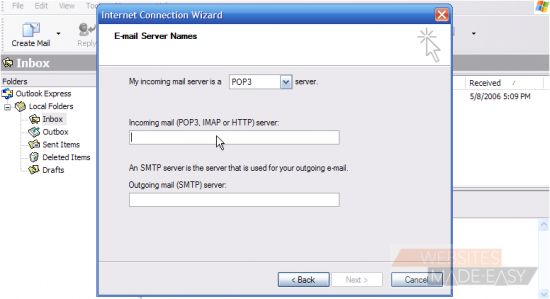
Depending on your ISP (Internet Service Provider), you may not be able to use the SMTP server setting provided by your hosting provider; you may have to use the SMTP server setting supplied by your ISP
If you are unable to send emails from your new account after it's setup, try changing this SMTP setting to that provided by your ISP, and try again
11) Click Next
12) Now enter the email username as provided to you by your hosting provider..... this may be the entire email address (john@demo1234.com), or just the username prefix (john)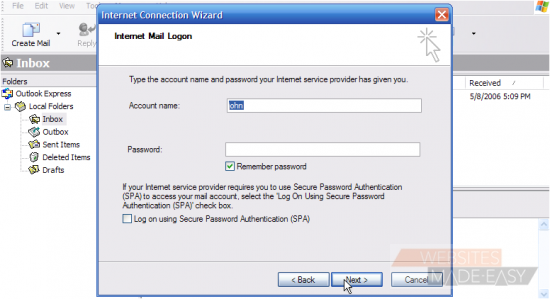
13) Then enter your email password here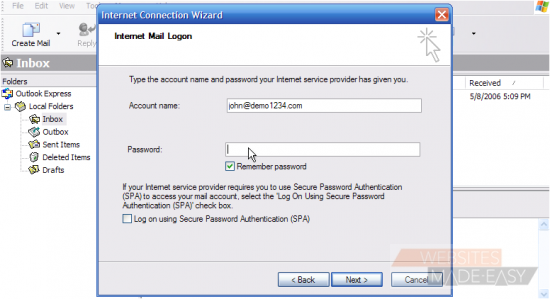
14) Click Next
15) Click Finish to complete the wizard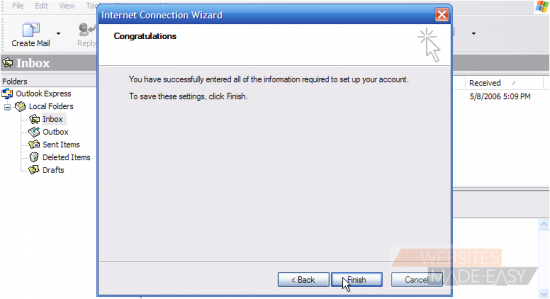
We're almost finished! But first let's go finish configuring our email properties
16) Select the email account we just created.....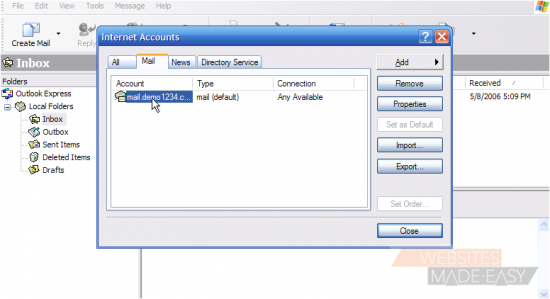
17) ..... then click the Properties button
18) Let's change the name of the email account to something more recognizable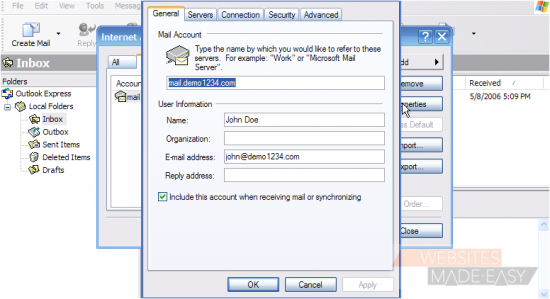
19) Enter an Organization name (if applicable)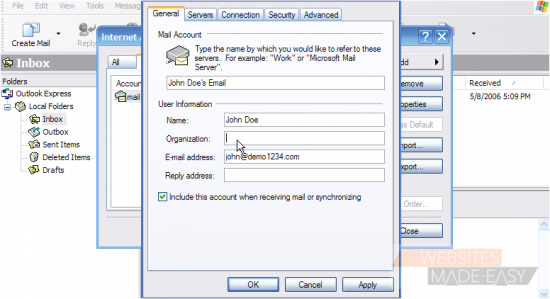
20) Then enter a Reply To address here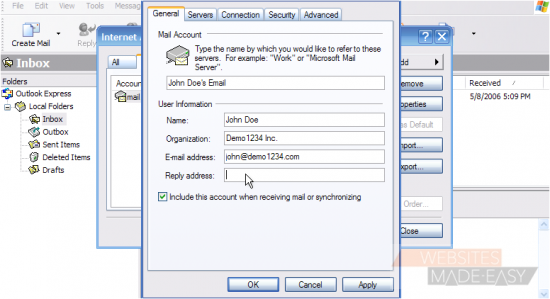
21) Click Apply so the changes take effect.....
22) ..... then click OK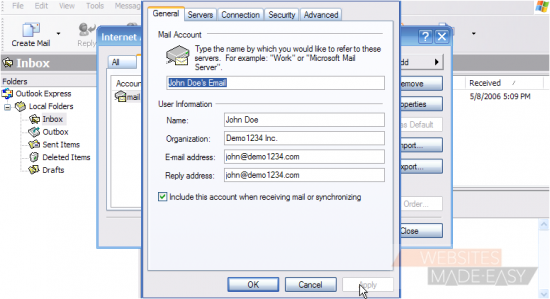
23) Click the Close button here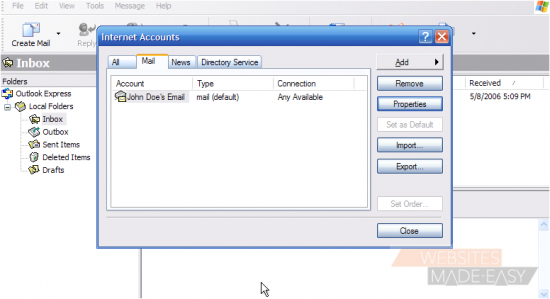
That's it! We've successfully setup an email account, and can now start sending and receiving emails to and from that account, from Outlook Express
This is the end of the tutorial. You now know how to setup an email account in Outlook Express. Remember that you also have to create that email address in your hosting account before it will work