
How to read and send e-mail messages in Apple Mail
Once you have added an e-mail account and set up an outgoing server, you can begin to send and receive messages.
1) Unread messages have this blue dot next to them.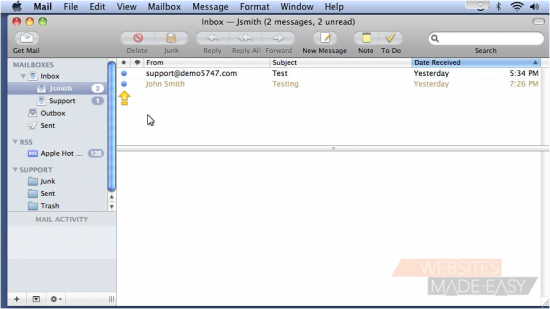
2) Click any message to view it. The contents will display in the pane below, and the message will be marked as read. You click Reply to send a response to this message... or click New Message to begin writing an e-mail.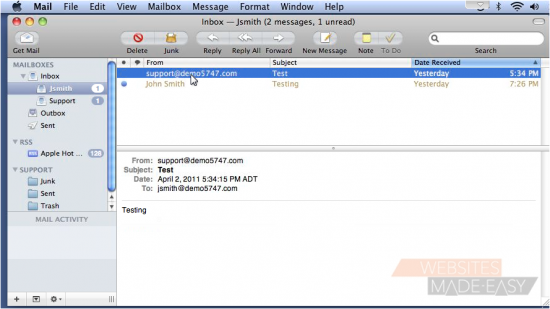
3) Type the recipient's e-mail address here.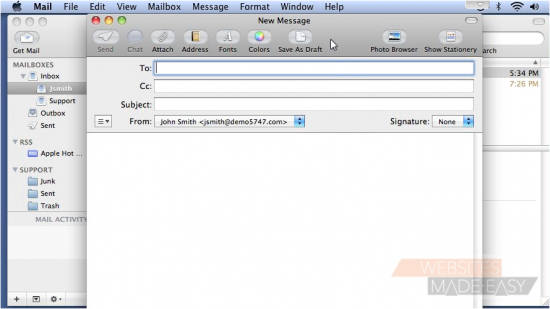
4) Enter a Subject for this message.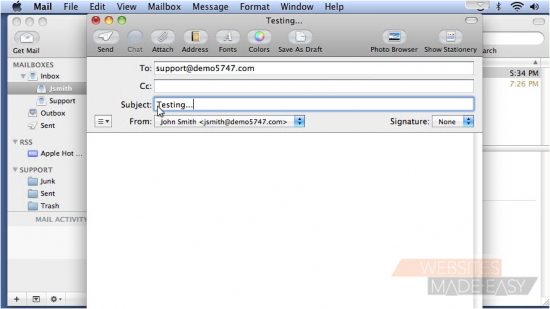
5) Choose the From address if you have more than one.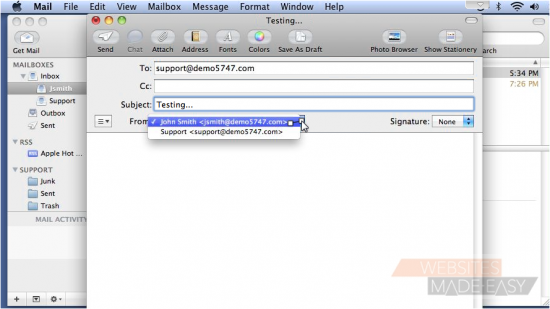
6) Type your message.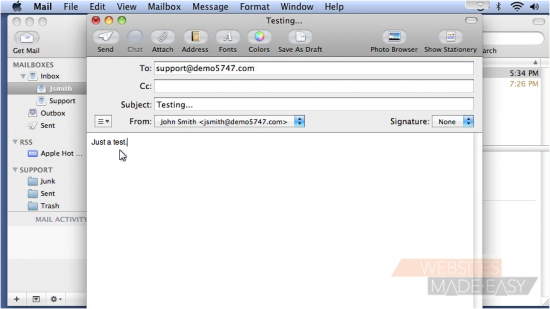
7) Let's see some text formatting options by clicking the Fonts icon. From here you can highlight some text, choose a new new font family and size, and select new font colors.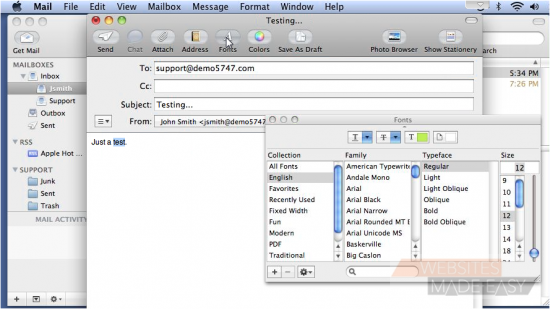
8) Now use the wheel to pick a new color.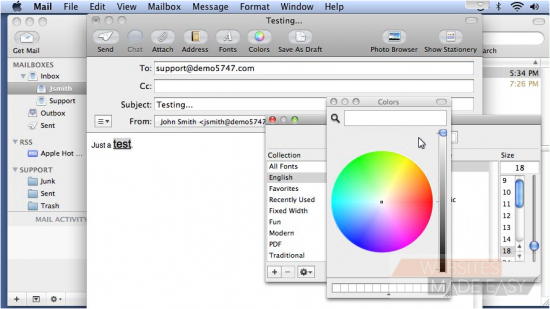
9) Click the Attach icon to attach a file... browse for the file and click Choose File.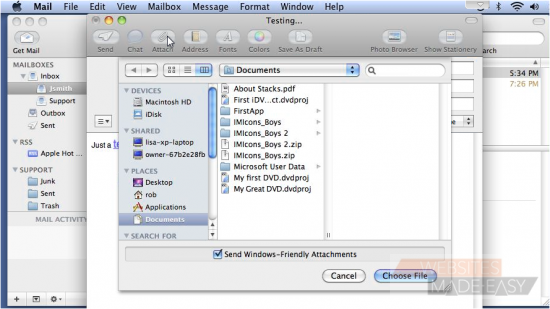
10) When ready, click Send.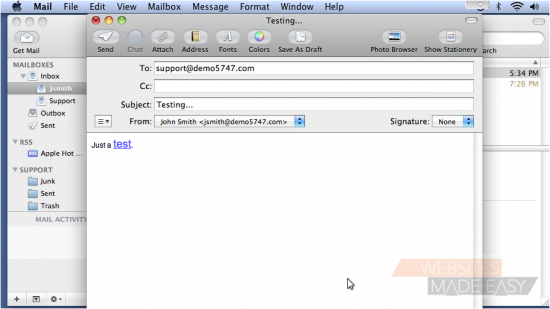
11) We can view our sent message in the Outbox.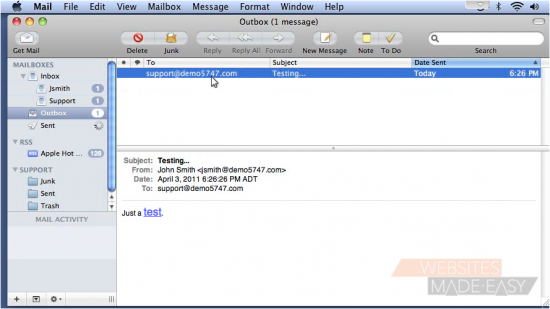
That's it! Now you know how to read and create messages in Apple Mail.